Photoreal renders. From your own 3D view.
Frame the shot in the 3D view, choosing its shape, its lens and the height of the eye, and render it. The room comes back as a photograph, with your plan’s walls, windows and furniture where you put them. Then restyle it, change one spot, or place your own furniture in it.
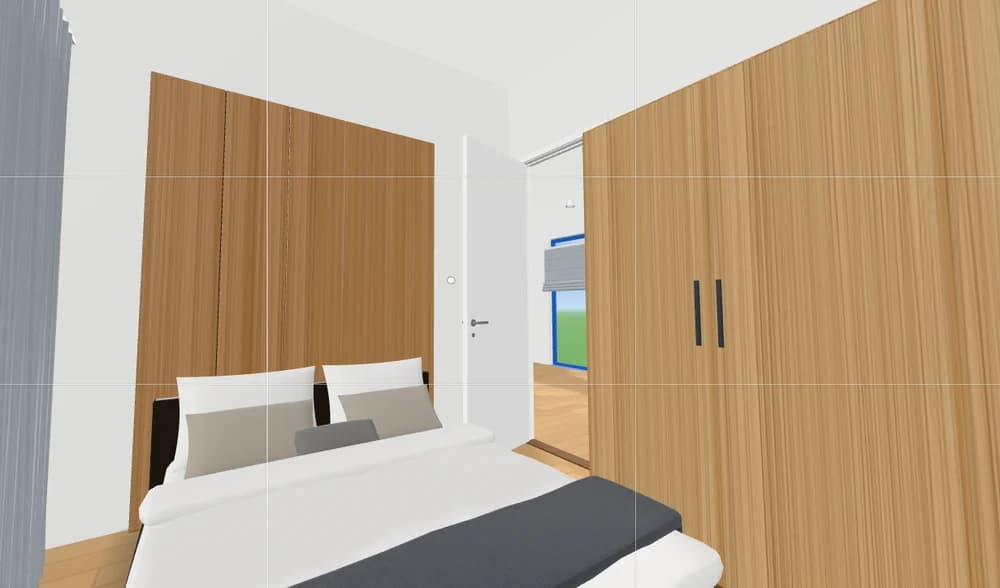
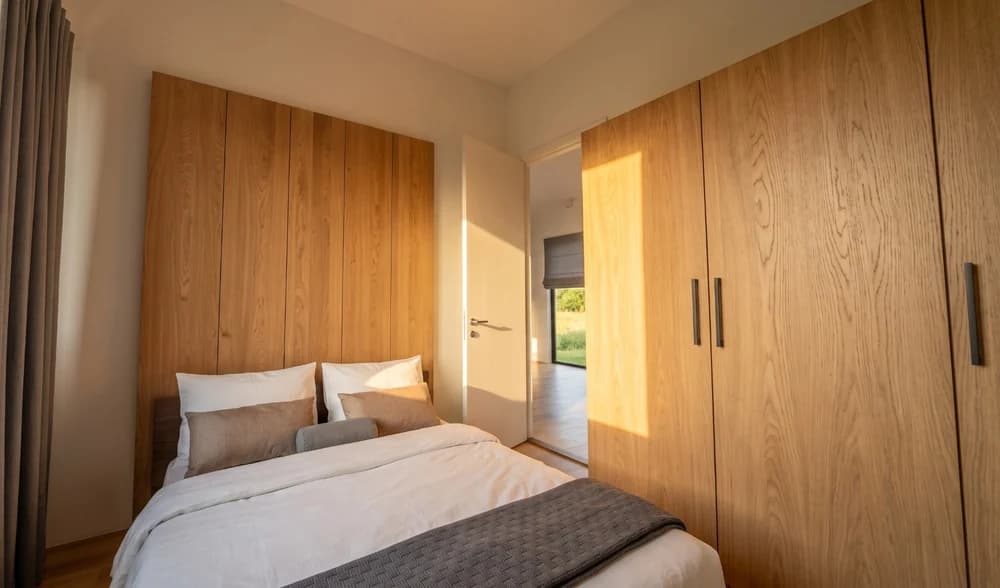

How it works
- 01
Frame the shot
Pick the picture’s shape, the lens and the eye height, and walk to the spot.
- 02
Render
The view comes back as a photograph, up to 4K on the higher plans.
- 03
Edit it
Restyle the picture, change one spot, or upload furniture to place in it.
What you get
Your room, not a stock one
Rendered from the plan you drew, so the room is the room.
Your own furniture
Upload pictures of pieces, place and turn them, and render them in.
The original is kept
Every edit is saved as a new render beside the one it came from.
A render is a visualization: it is not measured, and the furniture in it is not a list of products.
Questions people ask
How large can a render be?
HD on the Starter plan, and up to 4K from the Homeowner plan. A 4K render uses more credits than a smaller one.
Can I change a render afterwards?
Yes. Restyle it, paint over one spot to change it, or place your own furniture; each edit is saved as a new render.
Go further: Render hub.
More features
See all features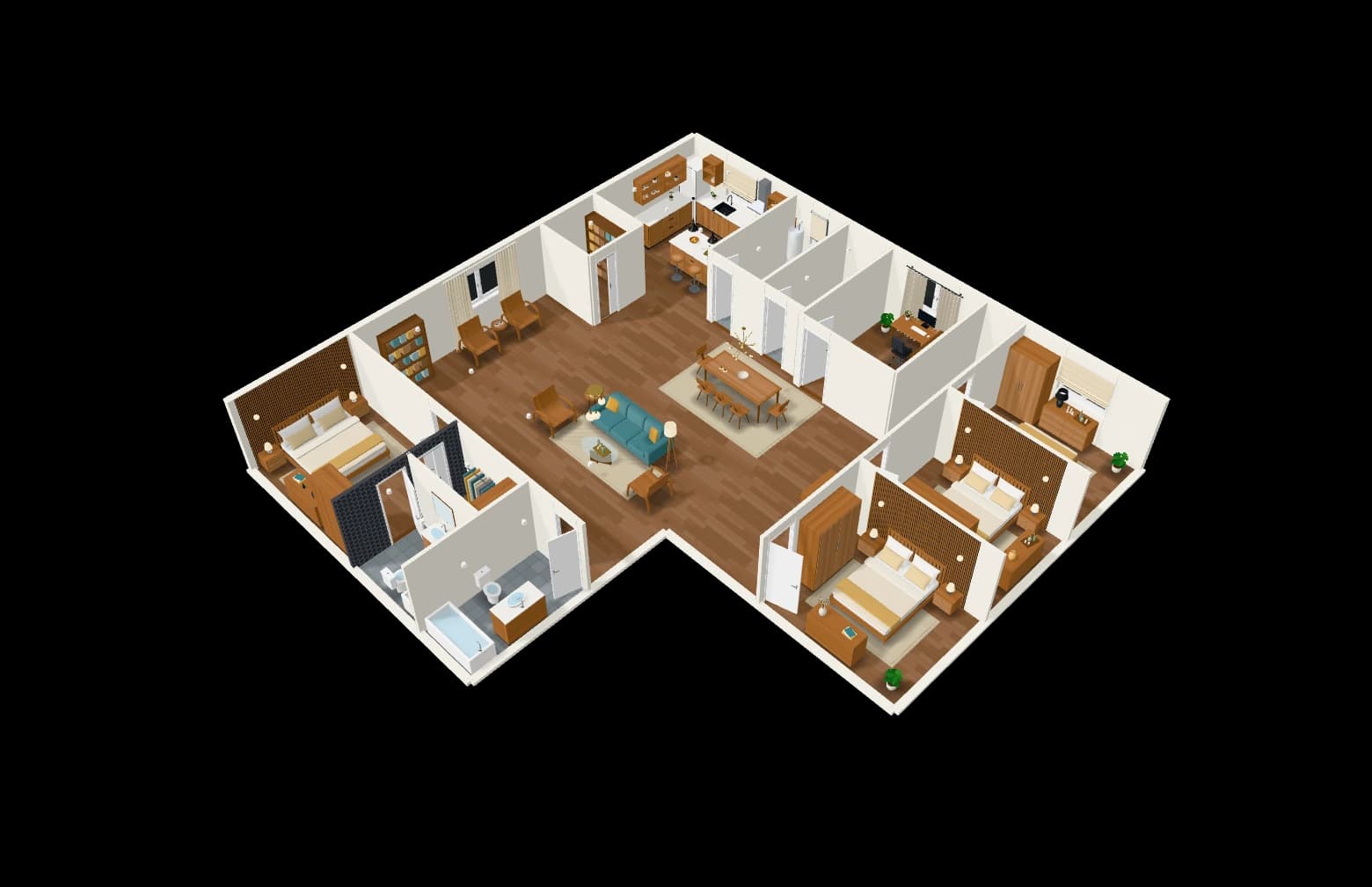
Drawings for architects
Wall types, dimension chains, schedules, sections and sheets to scale.
Explore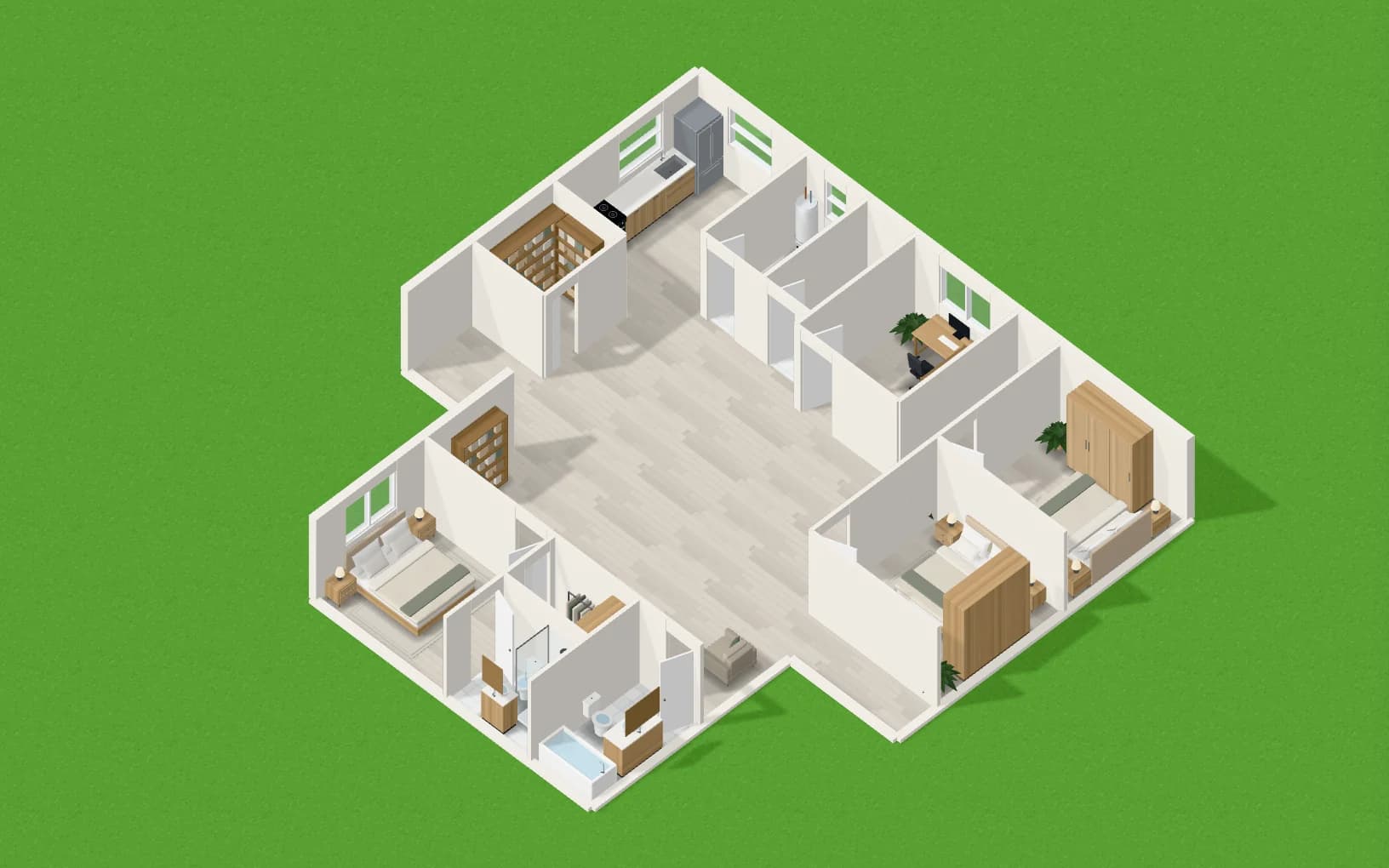
Share with clients and your team
Send a client a view-only link to the plan in 2D and 3D, with its renders.
Explore3D and Walkthrough
See the plan in 3D, cut it open, and walk through it in first person.
Explore